
Table of Contents
If you have been paying a cable bill every month and quietly wondering whether there is a smarter way to watch TV, you are not alone. Millions of Americans have already made the switch to internet-based television, and a growing number of them are doing it through Apple TV. The combination works surprisingly well, and once it is set up, you might forget cable ever existed.
This guide walks you through everything you need to know: why Apple TV handles IPTV so well, what to look for in a best IPTV subscription for US viewers, how to get everything running step by step, and how to troubleshoot the occasional hiccup. We also cover our free trial offer, so you can test the service before spending a dollar.
Why Apple TV Is a Smart Choice for IPTV
Not all streaming devices are created equal. Budget sticks and older smart TV apps can struggle with high-bitrate IPTV streams, leading to buffering, dropped connections, or poor picture quality. Apple TV sits in a different league, and there are clear reasons for that.
Hardware Quality and 4K HDR Capabilities
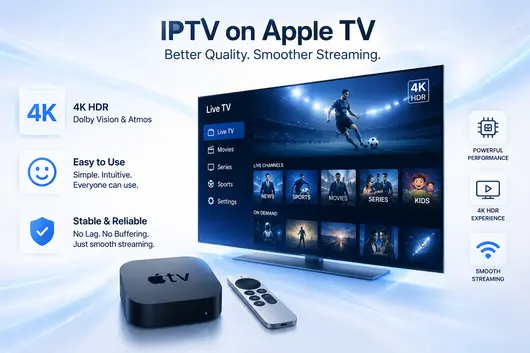
The current Apple TV 4K model runs on a chip that is genuinely powerful by streaming device standards. It handles 4K HDR content with Dolby Vision and Dolby Atmos support, which means when your IPTV provider sends a high-quality stream, your Apple TV can actually render it the way it was meant to look. You are not leaving quality on the table.
For viewers aged 35 to 75 who have spent years in front of a good television set, this matters. A crisp, well-defined picture with accurate colors is not a luxury detail. It is the whole point of sitting down to watch something.
A User-Friendly Interface That Does Not Frustrate
Apple has spent a lot of energy making tvOS simple to navigate. The remote is straightforward, menus are clean, and the learning curve is gentle. If you can use an iPhone or an iPad, you will feel at home on Apple TV within minutes. That accessibility makes it a practical choice for anyone who does not want to dig through complicated settings just to watch the evening news or a sports game.
Stability Compared to Budget Streaming Sticks
Cheaper streaming sticks can overheat, lag, or crash under the sustained load of live IPTV. Apple TV runs cooler and more consistently, which is important when you are watching a live game and you absolutely cannot afford a freeze at the wrong moment.
Apple TV vs Other Streaming Devices: How Do They Compare?
If you are still weighing your options, this side-by-side comparison covers the most common streaming devices used for IPTV in American households. The differences are meaningful, particularly once you factor in live TV reliability and picture quality.
| Feature | Apple TV 4K | Amazon Fire TV Stick 4K | Roku Ultra | Android TV Box | Smart TV (Built-in) |
|---|---|---|---|---|---|
| Max Video Quality | 4K HDR / Dolby Vision | 4K HDR / Dolby Vision | 4K HDR | 4K HDR | 4K HDR (varies) |
| Processor Power | Excellent (A15 chip) | Good | Moderate | Varies widely | Often limited |
| IPTV App Support | Good (App Store) | Excellent (sideload + store) | Moderate | Excellent (APK sideload) | Limited |
| Sideloading Apps | No | Yes | No | Yes | Rarely |
| Live IPTV Stability | Excellent | Good | Moderate | Good (varies by box) | Inconsistent |
| Ease of Use | Very easy | Easy | Very easy | Moderate | Easy |
| AirPlay Support | Yes (native) | No | No | No | Some models |
| Ethernet Port | Yes (adapter) | No | Yes | Yes (most models) | Yes |
| Price Range (USD) | $129 and up | $50 and up | $100 and up | $30 to $100 | Included with TV |
| Best For | Premium quality, Apple users | Flexibility, sideloading | Simple use, seniors | Budget, tech-savvy users | Casual occasional use |
Apple TV stands out for its processing power and stability under sustained IPTV load. Android TV boxes offer more flexibility for those comfortable with manual app installation. Fire TV Stick hits a middle ground between price and capability. For everyday viewers who want a clean, reliable experience without fiddling with settings, Apple TV remains the strongest choice.
What to Look for in the Best IPTV Subscription for US Viewers
Choosing the right IPTV provider is as important as choosing the right device. The US market has no shortage of options, but quality varies enormously. Here is what genuinely matters.
Channel Variety: Sports, News, and Local US Channels
A good IPTV subscription for American viewers needs to cover the basics: local network affiliates for your area, major sports packages, national news channels, and ideally a solid library of international content if that matters to your household. Look for providers that regularly update their channel lists and include regional channels, not just national ones.
Streaming Stability and Uptime Guarantees
This is where many low-cost providers fall short. Consistent uptime during peak hours, particularly during NFL Sundays or major live events, separates reliable services from frustrating ones. Ask providers directly about their server infrastructure and whether they use redundant streams for popular channels.
Compatible Apps and Device Support
The best IPTV providers support multiple apps and delivery formats, including M3U playlist URLs and Xtream Codes API. These two formats open up a wide range of player apps on Apple TV, giving you flexibility in how you consume content.
Customer Support and Free Trial Availability
A provider confident in their service will offer a free trial. No credit card, no lengthy commitment. If they resist or add friction to the trial process, that tells you something. Solid customer support, available when things go wrong, is equally important.
How to Set Up IPTV on Apple TV: Step by Step
Getting IPTV running on Apple TV is not complicated once you know the steps. There are two main methods depending on how your provider delivers content.
Method 1: Using an IPTV Player App from the App Store
The App Store on Apple TV includes several capable IPTV player applications. These apps act as the interface between your subscription and your screen.
- On your Apple TV home screen, open the App Store.
- Search for an IPTV player app. Common options accept M3U playlist links or Xtream Codes credentials.
- Download and open the app.
- Navigate to the settings or playlist section within the app.
- Enter the M3U URL or Xtream Codes details provided by your IPTV subscription service.
- Save the settings and wait for the channel list to load. This can take anywhere from a few seconds to a couple of minutes depending on how large your channel list is.
- Browse your channels and start watching.
Some apps require you to add the playlist via a companion app on your iPhone or iPad first. Check the app’s instructions for that step if needed.
Which IPTV Apps Work on Apple TV?
The type of app you use on Apple TV depends on how your IPTV provider delivers your subscription credentials. There are three main connection methods, each with its own setup process and performance profile.
| App Type | Connection Method | Setup Difficulty | Stream Quality |
|---|---|---|---|
| Free app (M3U/URL) | Direct link | Very simple | Correct |
| Premium app (MAC) | MAC address + activation | A few steps | Excellent |
| Xtream Codes app | Credentials provided | Simple | Very good |
The free M3U option is the quickest way to get started and works well for most casual viewers. The MAC-based activation method requires a couple of extra steps but tends to deliver the most stable and highest-quality streams. Xtream Codes sits in the middle: straightforward to set up and reliable for everyday use.
Your IPTV provider will confirm which method applies to your subscription and recommend the app that pairs best with their server setup.
Method 2: AirPlay from iPhone or iPad
If you already use an IPTV player app on your iPhone or iPad, you can mirror or cast content directly to your Apple TV using AirPlay. Simply start playing a stream on your device, tap the AirPlay icon, and select your Apple TV from the list. This works well for occasional use but a dedicated Apple TV app gives you a cleaner, more permanent setup.
Entering Your IPTV Subscription Details
When your provider sends you login credentials, you will typically receive one of the following:
- An M3U URL (a web link ending in .m3u or .m3u8)
- An Xtream Codes login with a server address, username, and password
Enter exactly what your provider gives you. Double-check for typos, particularly in the URL. A single wrong character will prevent channels from loading.
Tips for Optimizing Your Connection
- Use a wired Ethernet connection if possible. Apple TV has a port for it, or you can use a USB-C to Ethernet adapter on newer models. Wired connections eliminate the wireless interference that causes buffering.
- If you use Wi-Fi, position your router within reasonable range of your Apple TV and reduce competing devices on the same network.
- Restart your router once a week as a general maintenance habit.
Getting the Best Picture Quality: 4K IPTV on Apple TV
Getting a 4K stream to look as good as it can involves a few variables beyond just having a 4K television.
Internet Speed Requirements
For smooth 4K IPTV streaming, you want a minimum of 25 Mbps dedicated to the stream. If others in your household are also streaming or gaming simultaneously, aim for a total household plan of at least 100 Mbps. HD content (1080p) works fine at 10 to 15 Mbps. Most US broadband plans handle this comfortably.
You can test your current speed at any speed testing site before setting up IPTV to know where you stand.
Router Placement and Wired vs. Wireless
Walls, floors, and appliances all reduce Wi-Fi signal strength. If your Apple TV is in a room far from your router, a powerline adapter or a mesh Wi-Fi system can dramatically improve stability. As mentioned above, a wired Ethernet connection is the gold standard for live TV streaming.
What 4K IPTV Actually Looks Like in Practice
When everything is working correctly, the jump from standard HD to 4K IPTV is noticeable, particularly on larger screens. Sports content benefits enormously. You can see detail in stadium crowds, grass on the field, and on-screen graphics that look genuinely sharp rather than slightly soft. For scripted content with good cinematography, the difference in color depth and clarity is equally satisfying.
Common Issues and How to Fix Them
Even with a good setup, occasional problems happen. Here are the most common ones and how to address them.
Buffering and Freezing
Buffering is almost always a network issue. Check your internet speed, switch to a wired connection if you have not already, and reduce the number of active devices on your network. Also check whether the issue is limited to specific channels or affects all of them. If only certain channels buffer, the problem may be on the provider’s server side for those streams.
App Crashes or Channels Not Loading
If your IPTV player app crashes or channels refuse to load, try the following steps in order:
- Close the app completely and reopen it.
- Check whether your M3U URL or Xtream Codes credentials are still valid. Providers occasionally update server addresses.
- Delete the app and reinstall it fresh.
- Contact your IPTV provider to confirm your subscription is active.
EPG (Electronic Program Guide) Not Working
The program guide shows what is on each channel and when. If it fails to load, make sure your app has the correct EPG URL, which your provider should supply. Some apps need additional time to populate the guide after initial setup. Give it 10 to 15 minutes. If it still does not appear, a fresh app install usually resolves it.
Is a Free Trial Worth It Before You Commit?
In short, yes. Any worthwhile IPTV provider should let you try before you buy. A free trial lets you test stream quality on your specific internet connection, confirm that the channel lineup matches what was advertised, and check how the service performs during the hours you actually watch TV.A good free trial should give you access to a representative sample of channels, including live sports and HD or 4K content. It should require no payment details upfront and last long enough for you to make a genuine evaluation.
Our service offers a free trial so you can explore the full channel selection, check picture quality on your Apple TV, and make an informed decision. There is no pressure and no hidden commitment. If it works for you, great. If not, you have lost nothing.
IPTV USA Review: What Real Users Are Saying
Among American cord-cutters, IPTV on Apple TV has earned consistently positive feedback for one central reason: reliability. Users who struggled with unreliable services on budget devices report a noticeably different experience once they move to Apple TV combined with a reputable provider.
Common themes in user feedback include appreciation for broad channel coverage including local affiliates, the quality difference during live sports, and the convenience of having everything in one place without juggling multiple streaming subscriptions.
What separates a genuinely good provider from a frustrating one comes down to three things: server uptime during peak hours, responsive customer support, and honest communication about what is and is not included in the subscription. Providers who check all three boxes consistently earn long-term subscribers.
Frequently Asked Questions
Can I use IPTV on Apple TV?
Yes. Apple TV supports IPTV through player apps available on the App Store. You load your subscription’s playlist URL or credentials into the app, and your channels appear directly on your television.
What is the best IPTV app for Apple TV?
Several apps on the App Store support M3U playlists and Xtream Codes. The best choice depends on the features you need, such as multi-screen support, EPG integration, and parental controls. Your IPTV provider can usually recommend an app that works well with their service.
Do I need a smart TV for IPTV?
Several apps on the App Store support M3U playlists and Xtream Codes. The best choice depends on the features you need, such as multi-screen support, EPG integration, and parental controls. Your IPTV provider can usually recommend an app that works well with their service.
Is IPTV legal in the USA?
Using IPTV technology itself is legal. The legality depends on the content being streamed and whether the provider holds the appropriate broadcasting licenses. Reputable IPTV providers operate within legal frameworks and hold the necessary rights to the content they distribute.
How much does a good IPTV subscription cost?
Quality Quality IPTV subscriptions in the US typically range from around $15 to $30 per month depending on the number of channels, stream quality, and included features. Annual plans usually bring the monthly cost down significantly. Compare that to a cable bill averaging well over $100 per month and the value proposition becomes clear.
Wrapping Up
Apple TV and a quality IPTV subscription make a genuinely strong pair. The hardware handles 4K streams well, the interface is accessible, and the stability outperforms most alternatives at a similar price point. Setup takes less than an hour, troubleshooting is manageable with a little guidance, and the monthly savings compared to a traditional cable package are real.
If you have been on the fence about making the switch, the best next step is simply to try it. Our free trial gives you full access with no financial commitment. Set it up on your Apple TV, watch a few hours of content you actually care about, and decide for yourself.