
Table of Contents
Cable prices in the US have quietly crept past $100, sometimes even $150 a month. And yet most people only watch a fraction of what they pay for. If you own a Samsung Smart TV and have been wondering whether there is a smarter way, you are in the right place.
IPTV on Samsung Smart TV is one of the cleanest setups available today. No extra box. No complicated wiring. Just your TV, your internet connection, and a subscription that actually fits how you watch. This guide covers what IPTV is, how to install it on your Samsung, and what to look for before you buy. A free trial is available if you want to test things out first.
What Is IPTV and Why Does It Work So Well on Samsung Smart TVs?
How IPTV Differs from Regular Streaming
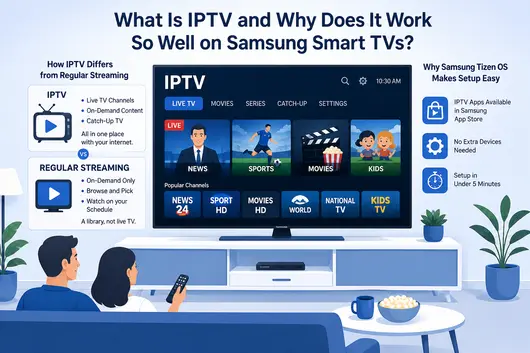
Most streaming services hand you a library of on-demand content. You browse, pick, and watch on your own schedule. IPTV works differently. It delivers live channels, on-demand content, and catch-up TV all in one place, using your internet connection the same way a cable provider would, but without the physical infrastructure.
Think of it like the difference between a music streaming library and live radio. One is entirely on your terms. The other puts you in the middle of live sports, news, and international programming happening right now. A good IPTV subscription gives you both in a single app.
Why Samsung Tizen OS Makes Setup Easy
Samsung Smart TVs from 2018 onward run Tizen OS, which supports a solid ecosystem of third-party apps. Several well-regarded IPTV players are available directly in Samsung’s app store, meaning you do not need an external streaming stick or set-top box. Your TV handles everything natively, and in most cases setup takes under five minutes.
What You Need Before You Start
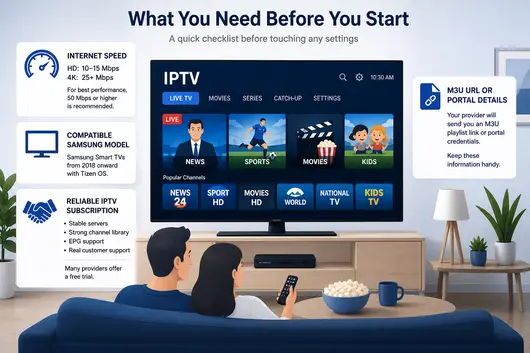
A quick checklist before touching any settings:
Internet speed: For HD channels, 10 to 15 Mbps is enough. For 4K streams, plan for at least 25 Mbps dedicated to the TV. If other devices compete for bandwidth, a 50 Mbps plan or higher gives you real breathing room.
Compatible Samsung model: Any Samsung Smart TV from 2018 onward running Tizen OS works with the major IPTV apps. Older models may require sideloading, covered below.
A reliable IPTV subscription: Quality varies widely. A good provider offers stable servers, a strong channel library, EPG support (the on-screen program guide), and actual customer support. Many reputable providers include a free trial so you can check picture quality and channel availability before committing.
Your M3U URL or portal details: When you sign up, your provider will send you either an M3U playlist link or portal credentials. Keep those handy.
How to Set Up IPTV on Samsung Smart TV: App Installation
Method 1: Samsung App Store (Recommended)
Step 1: Press the Home button on your remote to open the main navigation bar.
Step 2: Select Apps, then tap the Search icon in the top right corner.
Step 3: Search for an IPTV player such as « IPTV Smarters, » « Smart IPTV, » or « GSE Smart IPTV. »
Step 4: Select your preferred app from the results and choose Install.
Step 5: Once installed, open the app and proceed to connect your subscription.
If a specific app does not appear in your regional store, search for an alternative player. The connection process is nearly identical across all of them.
Method 2: Sideloading (Older Models)
If your Samsung TV predates Tizen OS or the app you need is unavailable, sideloading is the alternative. You will need a USB drive and a few extra steps: download the APK on a computer, copy it to a FAT32-formatted USB drive, plug it into your TV, and enable installation from unknown sources under Settings. This is a more technical route and is not officially supported on all Samsung models. If your TV is 2018 or newer, the app store is always the easier path.
How to Connect Your IPTV Subscription
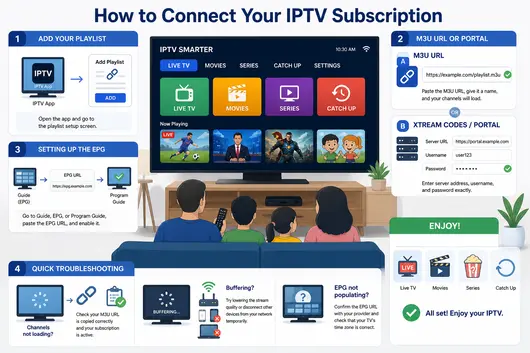
Once the app is installed, open it and look for the playlist setup screen.
If your provider gave you an M3U URL, select « Add Playlist » or « M3U URL, » paste the link, and give it a name. Your channels will load within a minute or two.
If your provider uses a portal system, choose « Xtream Codes » or « Portal URL, » then enter the server address, username, and password exactly as provided. Capitalization matters, so double-check before submitting.
Setting Up the EPG
An EPG shows what is on each channel now and what is coming up next, just like a traditional cable guide. Your provider will usually include an EPG URL with your subscription details. In your IPTV app, find the section labeled « Guide, » « EPG, » or « Program Guide, » paste the URL, and enable it. First-time loading can take a few minutes.
Quick troubleshooting:
- Channels not loading: check your M3U URL is copied correctly and your subscription is active.
- Buffering: try lowering the stream quality or disconnect other devices from your network temporarily.
- EPG not populating: confirm the EPG URL with your provider and check that your TV’s time zone is set correctly.
Getting the Best 4K Picture with IPTV on Samsung Smart TV
Within your IPTV app settings, look for « Buffer Size » and increase it if 4K streams are inconsistent. Also enable « Hardware Acceleration » where available. This offloads video decoding to your TV’s built-in processor and noticeably smooths out high-resolution playback.
On the network side, a wired Ethernet connection outperforms Wi-Fi for 4K content. Wi-Fi fluctuates based on distance, wall interference, and device congestion. If running a cable is not possible, a Wi-Fi extender positioned close to the TV is the next best option.
Is IPTV Legal in the USA in 2026?
IPTV as a technology is completely legal. What matters is whether the service delivering the content holds the rights to distribute it. Licensed providers operate exactly like a cable or satellite company.
The concern is with unlicensed services that redistribute copyrighted channels without authorization. They often advertise suspiciously low prices and access to every premium sports package imaginable. These carry real legal and practical risks: unreliable streams, zero customer support, and potential exposure to piracy liability.
A legitimate provider is transparent about what they carry, offers actual support channels, and prices their service in a range that makes business sense.
What to Look for When You Buy an IPTV Subscription
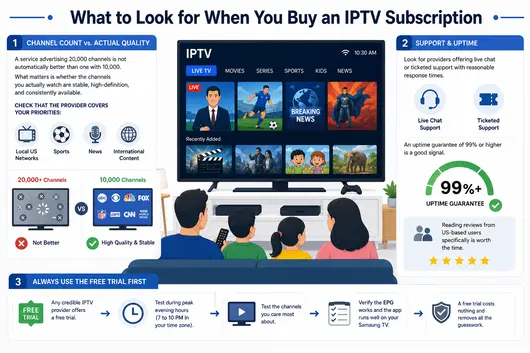
Channel count vs. actual quality
A service advertising 20,000 channels is not automatically better than one with 10,000. What matters is whether the channels you actually watch are stable, high-definition, and consistently available. Check that the provider covers your priorities: local US networks, sports, news, and any international content you follow.
Support and uptime
Look for providers offering live chat or ticketed support with reasonable response times. An uptime guarantee of 99% or higher is a good signal. Reading reviews from US-based users specifically is worth the time, since server performance varies by region.
Always use the free trial first
Any credible IPTV provider offers a free trial. Use it to test the channels you care most about, ideally during peak evening hours (7 to 10 PM in your time zone) when server load is at its highest. Verify the EPG works and that the app runs well on your specific Samsung model. A free trial costs nothing and removes all the guesswork.
What US Users Are Saying in 2026
| What US Users Praise | Common Concerns |
|---|---|
| Significant monthly cost savings | Stream quality during major live events |
| Wide international channel selection | EPG setup can take some patience |
| On-demand content alongside live TV | Customer support varies by provider |
| No long-term contracts | Initial learning curve for new users |
The most consistent feedback from US cord-cutters centers on cost. Most report reducing their monthly TV bill by 60 to 80 percent. International channel access comes up frequently as well, particularly among users who previously paid for specialized satellite packages. The main criticism involves peak-time buffering on big live sports events, which is exactly why testing a service during a free trial matters.
Frequently Asked Questions
Common Questions About IPTV on Samsung Smart TV
Can I use IPTV directly on my Samsung Smart TV?
Can I use IPTV directly on my Samsung Smart TV?
Yes. Samsung Smart TVs from 2018 onward running Tizen OS support IPTV apps natively. No extra device needed.
What internet speed do I need for 4K IPTV?
At least 25 Mbps dedicated to the TV. If multiple devices share your connection, a 50 Mbps plan or higher is more comfortable.
How much does an IPTV subscription cost in the USA?
Monthly plans typically run between $10 and $25. Annual plans bring the per-month cost down considerably. Many providers also offer multi-device plans.
Why is my IPTV buffering on my Samsung TV?
The most common causes are a slow connection, Wi-Fi interference, or high server load. A wired Ethernet connection and a larger buffer setting in the app resolve most cases.
Ready to Try IPTV on Samsung Smart TV?
Setting up IPTV on a Samsung Smart TV is easier than most people think, and it works for just about everyone. Whether you are a retiree in Arizona, a busy family in Ohio trying to trim the monthly bills, or someone who travels and wants their channels wherever they land, the TV sitting in your living room is already capable of handling all of it.
You do not need a new device. You do not need to call a technician. A solid app, a trustworthy provider, and a working internet connection are genuinely all you need.
Take a look at our complete setup guide if you want to walk through every detail, or head over to our plans and pricing to pick what fits your budget. Have a question before you start? Our support team is here to help you every step of the way.