
Table of Contents
If you have been paying a cable bill north of $100 a month and wondering why half the channels never get watched, you are not alone. A lot of people across the US are making the switch to IPTV, and TiviMate has become one of the most talked-about apps for managing that experience. It is clean, fast, and once it is set up properly, it feels a lot like using a real cable TV interface, minus the bloated bill.
This guide is here to walk you through everything: what TiviMate actually is, what you need before you start, how to install it, how to connect your IPTV subscription, and how to get the most out of it day to day. Whether you are brand new to streaming or just switching from another app, this covers it all in plain language.
And yes, if you do not have an IPTV subscription yet, we offer a free trial so you can test the waters before committing to anything.
What Is TiviMate and Why Do So Many People Use It?

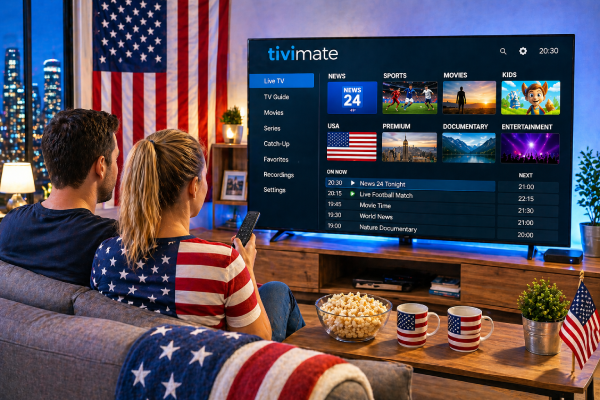
TiviMate is an IPTV player, meaning it does not come with channels on its own. Think of it like a smart remote control: it organizes and plays the content from whatever IPTV service you subscribe to. You bring the subscription, TiviMate brings the interface.
What makes it stand out is how polished the experience feels. The channel grid is laid out like a traditional TV guide. Navigating with a remote is smooth. The app loads quickly, handles large channel lists without lagging, and supports features like an electronic program guide (EPG), favorites, catch-up TV, and recording, depending on your plan.
Most IPTV players feel a bit rough around the edges. TiviMate does not. That is probably the main reason it has built such a loyal following, especially among users who were used to the familiar look of a cable guide and did not want to give that up.
It is best suited for people using Android TV devices, Fire TV Sticks, or similar set-top boxes connected to a television. If you watch on a phone or tablet most of the time, it is worth knowing upfront that TiviMate does not support iOS or standard Android mobile devices.
What You Need Before You Start
Compatible Devices
TiviMate runs on Android TV-based devices. The most common ones used in the US include:
- Amazon Fire TV Stick (4K, 4K Max, Lite, or 3rd gen and newer)
- NVIDIA Shield TV or Shield TV Pro
- Chromecast with Google TV
- Any Android TV box running Android 5.0 or higher
- Some smart TVs with built-in Android TV (Sony, TCL, Hisense with Android TV)
One thing to be clear about: TiviMate does not work on iPhones, iPads, or regular Android phones. It is built exclusively for the TV environment. If you are on Apple devices, you would need a different player.
A Reliable IPTV Subscription
TiviMate needs an IPTV subscription to actually display channels. When you sign up with a provider, you will receive one of two things:
An M3U URL: This is basically a web address that contains your full channel list. It looks something like http://substream4k.me:port/get.php?username=.... You paste it into TiviMate and it loads everything automatically.
Xtream Codes credentials: This is a login-style setup where you get a server URL, a username, and a password. It works the same way in the end but gives the provider more control over the connection.
Either format works fine with TiviMate. If you are not sure which one your provider uses, they will typically include that information in the welcome email.
Not signed up yet? We offer a free trial so you can test everything with TiviMate before making any decisions.
How to Install TiviMate on Your Device (Step by Step)
Installing via the Google Play Store
If your device has access to the Google Play Store (most Android TV boxes and Chromecast with Google TV do), this is the simplest route.
- Open the Google Play Store on your device
- Search for « TiviMate IPTV Player »
- Select the app from the results (it shows the logo with a TV icon)
- Tap « Install » and wait for the download to complete
- Open the app once installed
That is the whole process. The Google Play version is always up to date and requires no extra steps.
Installing via Downloader App (Fire TV and Sideloading)
Amazon Fire TV devices do not have the Google Play Store, so you will need to sideload TiviMate using the Downloader app. This sounds more complicated than it is.
Step 1: Enable apps from unknown sources
- Go to your Fire TV home screen
- Open « Settings »
- Navigate to « My Fire TV » or « Device »
- Select « Developer Options »
- Turn on « Apps from Unknown Sources » (or « Install Unknown Apps » depending on your model)
- Find the Downloader app in the list and toggle it on
Step 2: Install the Downloader app
- Go back to the home screen
- Search for « Downloader » in the search bar
- Install the orange Downloader app by AFTVnews
Step 3: Download TiviMate
- Open Downloader
- In the URL field, type:
https://tivimate.comor search for the direct APK link (TiviMate’s official site lists it) - Download the file and follow the prompts to install
Once installed, TiviMate will appear in your apps section. You may need to pin it to your home screen for easy access.
How to Set Up TiviMate With Your IPTV Subscription
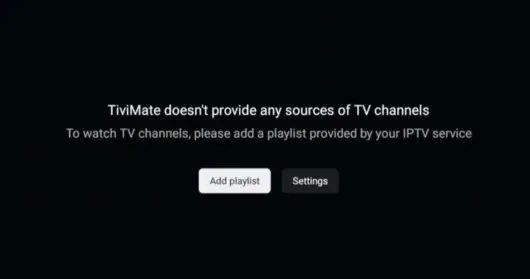
Once TiviMate is open for the first time, it will ask you to add a playlist. This is where your IPTV subscription details come in.
Adding a Playlist Using an M3U URL
- Select « Add Playlist » on the welcome screen
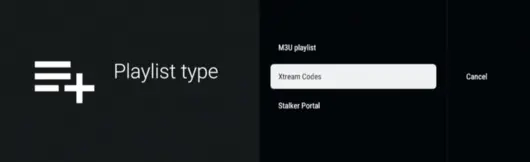
- Choose « M3U Playlist »
- Paste your M3U URL into the field provided
- Give the playlist a name (something simple like « My IPTV » works fine)
- Tap « Next » and let TiviMate load the channels
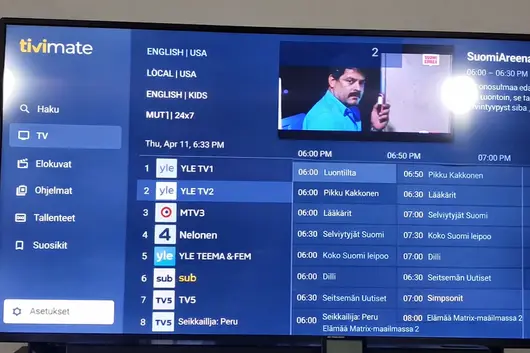
Depending on how large your channel list is, this could take anywhere from a few seconds to a couple of minutes. Once loaded, you will see your channels organized in the guide.
Adding a Playlist via Xtream Codes
- Select « Add Playlist » on the welcome screen
- Choose « Xtream Codes API »
- Fill in three fields:
- Server URL: The address your provider gave you (e.g.,
http://provider-server.com:8080) - Username: Your account username
- Password: Your account password
- Server URL: The address your provider gave you (e.g.,
- Name the playlist and tap « Next »
A common mistake here is leaving extra spaces in the username or password fields, especially if you copy-pasted them from an email. If the connection fails, that is the first thing to check.
TiviMate Free vs. TiviMate Premium: What Is the Difference?
TiviMate has a free version that gets you started, but the Premium version (available as a one-time purchase or annual subscription through the companion app) unlocks the features that make the experience complete.
| Feature | Free Version | Premium Version |
|---|---|---|
| Live TV playback | Yes | Yes |
| Electronic Program Guide (EPG) | Basic | Full, with multi-day view |
| Multiple playlists | No | Yes (up to 4) |
| Favorites panel | No | Yes |
| Recording to USB/external storage | No | Yes |
| Catch-up TV | No | Yes (if provider supports it) |
| Auto-update playlists | No | Yes |
| Panel customization | Limited | Full |
For casual use, the free version is fine. But if you are replacing cable TV and want the full experience, including being able to save content or manage multiple subscriptions, Premium is worth the cost. It is a one-time fee, not a recurring monthly charge, which makes it easy to justify.
Common TiviMate Problems and How to Fix Them
Even the best IPTV player runs into occasional hiccups, and TiviMate is no exception. Most issues are straightforward to resolve once you know where to look.
Buffering during playback This is usually a network or server issue rather than a TiviMate problem. Check your internet speed first (25 Mbps or more is ideal for HD streaming). If your speed is fine, try switching from Wi-Fi to a wired ethernet connection. Also check if the issue is on a specific channel or all channels. If it is one channel, the problem is on the provider side.
Playlist not loading Double-check your M3U URL or Xtream Codes credentials for typos. Try opening the URL in a browser on your phone to confirm it is active. If the URL works in a browser but not in the app, try removing and re-adding the playlist.
EPG not showing schedule data Go to the playlist settings and confirm that EPG data is enabled. Some providers require you to enter a separate EPG URL. If you have done that and it still does not work, try forcing an EPG update from the settings menu.
App crashing or freezing This is often a memory issue on older devices. Try clearing the app cache, found in your device’s app settings, restarting the device, and reopening the app. If the problem persists on a Fire TV Stick, closing background apps before launching TiviMate usually helps free up enough memory to stabilize things.
Choosing the Best IPTV Subscription to Use With TiviMate
TiviMate is only as good as the service behind it. Here is what to look for when evaluating an IPTV subscription.
Stability and uptime: A service that goes down frequently or cuts out during live sports is not worth the money regardless of how cheap it is. Look for providers that mention server redundancy and uptime guarantees.
Channel count and variety: More channels is not always better. A focused selection of US networks, news, sports, and international content tends to be more reliable than a list of 20,000 channels where half are never working.
EPG support: Without a working program guide, TiviMate loses one of its biggest advantages. Confirm your provider includes EPG data.
Catch-up availability: If you watch TV on your own schedule rather than live, catch-up is important. Not all providers offer it.
Customer support: A provider that answers questions quickly and actually resolves issues is worth paying a little more for. Check whether they have a support ticket system, live chat, or at minimum a responsive email address.
Free trial: Any reputable provider should let you test their service before asking for payment. We offer a free trial so you can check compatibility with TiviMate and confirm the channel quality meets your expectations before signing up.
Frequently Asked Questions
Is TiviMate free?
The app has a free version that allows basic live TV playback. The Premium version, which adds features like EPG, favorites, recording, and multiple playlists, requires a purchase through the companion app.
Can I use TiviMate on my iPhone?
No. The app is only available for Android TV-based devices. It is not supported on iOS, iPadOS, or standard Android smartphones.
What is the best IPTV player for Fire Stick?
TiviMate is widely considered one of the strongest options for Fire TV Stick users because of its polished interface and full-featured EPG. It requires sideloading since it is not available on the Amazon Appstore, but the process is straightforward.
Does TiviMate work without an IPTV subscription?
No. The app is a player, not a content provider. You need an active IPTV subscription with an M3U URL or Xtream Codes login to use it.
How do I add channels?
Channels come from your IPTV provider’s playlist. You cannot add individual channels manually. If you want more, you would need to either upgrade your subscription plan or switch providers.
How often does the channel list update?
With the Premium version, you can set the playlist to auto-update at regular intervals, daily for example. The free version requires manual updates.
Ready to Try It?
TiviMate is one of the most capable IPTV players available right now, and once it is set up with a solid subscription behind it, the experience genuinely holds up against traditional cable for a fraction of the cost.
If you do not have an IPTV subscription yet, start with our free trial. You will get access to the full channel lineup to test alongside TiviMate before spending a cent. No long commitments, no hidden fees. Just a straightforward way to see whether IPTV is right for you.