
Table of Contents
You finally sit down after a long day, pull up your favorite channel, and within two minutes the screen freezes. That spinning wheel stares back at you. Sound familiar? IPTV buffering is probably the single most complained-about issue among streaming users in the US, and honestly, it does not have to be your reality.
The good news is that most buffering problems are fixable at home, without any technical background. Whether you are watching on your television, a streaming stick, or a tablet, the solutions in this article will walk you through each fix step by step. And if you have been wondering whether your current IPTV provider is part of the problem, we will cover that too, including how a free trial can help you test a better service before committing.
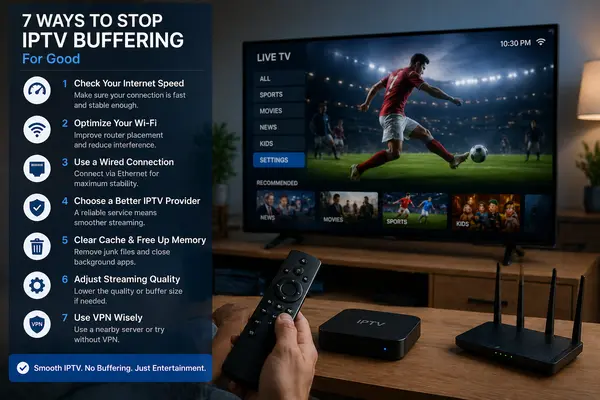
Here are the 7 proven ways to stop IPTV buffering for good.
What Causes IPTV Buffering in the First Place?
Before jumping into fixes, it helps to understand what is actually happening when your stream buffers. Think of it like water flowing through a garden hose. If the hose is too narrow, gets kinked, or the water pressure drops at the source, the flow slows down. Buffering is essentially the same thing, just with data instead of water.
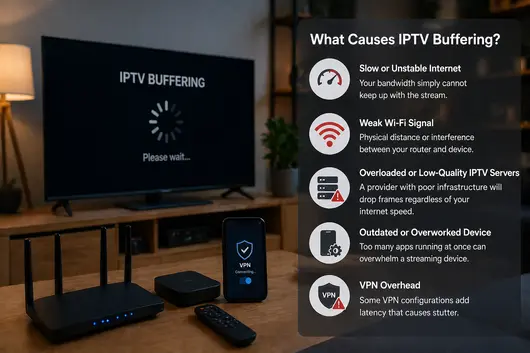
The most common causes include:
- Slow or unstable internet connection — Your bandwidth simply cannot keep up with the stream
- Weak Wi-Fi signal — Physical distance or interference between your router and device
- Overloaded or low-quality IPTV servers — A provider with poor infrastructure will drop frames regardless of your internet speed
- Outdated or overworked device — Too many apps running at once can overwhelm a streaming device
- VPN overhead — Some VPN configurations add latency that causes stutter
Once you identify which of these applies to your setup, fixing the problem becomes much more manageable.
Fix 1 — Check Your Internet Speed and Connection Type
This is always the first place to start. A lot of users assume their internet is fine because they pay for a high-tier plan, but what matters is the actual speed delivered to your device in real time, not the number on your bill.
Open any speed test tool from your device (not your phone on cellular) and run a test. Compare the result to the table below.
What Speed Do You Actually Need for IPTV?
| Stream Quality | Minimum Speed Required | Recommended Speed |
|---|---|---|
| SD (480p) | 5 Mbps | 10 Mbps |
| HD (720p/1080p) | 10 Mbps | 20 Mbps |
| 4K Ultra HD | 25 Mbps | 50 Mbps or higher |
| Multiple streams simultaneously | Add the above per stream | — |
If your speed is close to or below these minimums, buffering is almost guaranteed. Contact your internet provider or consider upgrading your plan, especially if you are regularly streaming 4K content or have multiple people in the house using the internet at the same time.
Also note: the type of connection matters. A wired Ethernet connection will almost always outperform Wi-Fi, even on a fast plan. If you are currently using Wi-Fi and experiencing buffering, this alone may solve your problem.
Fix 2 — Optimize Your Wi-Fi Setup
If a wired connection is not possible right now, there are still meaningful steps you can take to improve Wi-Fi performance.
Router Placement and Channel Interference
Your router placement has a bigger impact than most people realize. Walls, floors, kitchen appliances (especially microwaves), and even baby monitors can interfere with your signal. Here is what to check:
- Place your router in a central, open location, ideally at the same height as your streaming device
- Keep it away from microwaves, cordless phones, and other electronics that emit 2.4 GHz signals
- If your router supports dual-band (2.4 GHz and 5 GHz), connect your streaming device to the 5 GHz band — it is faster and less congested, though it has a shorter range
- Reboot your router at least once a week; routers slow down over time when they are never restarted
If you live in an apartment building or a densely populated area, channel congestion from neighbors can be a real issue. Many modern routers have an automatic channel selection feature — enabling it can help. Alternatively, a Wi-Fi extender or a mesh network system can dramatically improve coverage in larger homes.
Fix 3 — Use a Wired Ethernet Connection When Possible
This fix deserves its own section because it is that effective. A direct Ethernet cable eliminates almost every Wi-Fi-related buffering issue in one step.
For most smart TVs, this is straightforward — there is an Ethernet port on the back. For streaming sticks, it takes one extra step.
Quick Setup Guide for Fire TV Stick Users
The Amazon Fire TV Stick does not have a built-in Ethernet port, but you can add one with an inexpensive adapter. Here is how:
- Purchase a compatible USB Ethernet adapter (many are available for under $15 online)
- Connect the adapter to the micro-USB or USB-C port on your Fire TV Stick using the included OTG cable
- Plug one end of your Ethernet cable into the adapter and the other into your router or a wall outlet connected to your network
- Go to Settings on your Fire TV, then Network, and select your wired connection
That is it. Most users notice an immediate improvement in stability. If you are using IPTV on Amazon Fire TV Stick regularly, this single step is one of the most impactful upgrades you can make.
Fix 4 — Choose a Better IPTV Subscription
Here is the uncomfortable truth: no amount of internet speed or Wi-Fi optimization will fix buffering caused by an unreliable IPTV provider. If the server delivering your content is overloaded or poorly maintained, the stream will stutter regardless of your connection.
This is why choosing the best IPTV subscription matters as much as your home setup.
What Makes a Best Secure IPTV Service?
A quality provider should offer:
- High server uptime — Ideally 99.9% or higher, not just during off-peak hours
- Anti-buffering infrastructure — Multiple server clusters and load balancing, so traffic spikes do not affect your stream
- Reliable HD and 4K delivery — Consistent bitrate without compression artifacts
- Regular updates — Channels that actually work, with dead links removed promptly
- Strong security practices — Encrypted streams and no exposure of your personal data
Our service is built with exactly these priorities in mind. We offer thousands of channels and on-demand content with servers optimized for US viewers. Not sure yet? We offer a free trial so you can test stream quality, channel variety, and stability before making any commitment. No credit card required during the trial period.
Fix 5 — Clear Cache and Free Up Device Memory
Over time, apps accumulate cached data that can slow down your device and contribute to buffering. This is especially common on older Fire TV Sticks and Android-based devices that have limited RAM.
Step-by-Step for Fire TV Stick
- Go to Settings on your home screen
- Select Applications, then Manage Installed Applications
- Find your IPTV app and tap on it
- Select Clear Cache, then Clear Data
- Restart the device
Step-by-Step for Android Devices
- Open Settings and go to Apps or Application Manager
- Find your IPTV player app
- Tap Storage, then Clear Cache
- Close all background apps before launching your IPTV stream
A good habit is to clear the cache every two to four weeks if you stream regularly. Also, avoid running too many apps in the background. On a Fire TV Stick, that means closing out of other streaming apps before opening your IPTV player.
Fix 6 — Adjust Streaming Quality Settings in Your IPTV App
Sometimes the stream itself is set to a higher quality than your connection can handle. Most IPTV players allow you to manually adjust the video quality or buffer size.
Manual Resolution Adjustment
If your app has a video quality setting, try dropping from 4K or Full HD down to HD temporarily. Once your stream is stable, you can gradually increase quality to find the sweet spot for your connection.
Buffer Size Settings
Some IPTV apps, particularly on Android, include an advanced setting for buffer size or cache duration. Increasing this value gives the app more time to pre-load content before playing, which can smooth out minor connection hiccups. Look for this in your app’s settings under « Advanced, » « Playback, » or « Network. »
A buffer size of around 5,000 to 10,000 KB is a reasonable starting point for most connections. If your app does not show this option, switching to a player that offers more control (such as a dedicated IPTV media player available on major app stores) may be worth considering.
Fix 7 — Use a VPN Wisely, or Turn It Off
VPNs are a double-edged sword for IPTV users. In some cases, a VPN can actually reduce buffering — specifically when your internet provider is deliberately throttling streaming traffic, which does happen with some US ISPs.
When a VPN Helps vs. Hurts IPTV Performance
A VPN can help if:
- Your ISP throttles video streaming (you notice speeds drop specifically during streaming hours)
- You are traveling and accessing your service from outside your usual region
- You want an added layer of privacy when streaming
A VPN can hurt if:
- You are connecting to a distant server (for example, a US user connecting to a European VPN server)
- The VPN protocol you are using adds significant overhead (OpenVPN can be slower than WireGuard or IKEv2)
- Your VPN service itself has congested servers
If you use a VPN and experience buffering, the first test is to simply turn it off and check whether the stream improves. If it does, try switching to a server closer to your location, or change your VPN protocol to WireGuard, which is generally much faster. If turning off the VPN consistently fixes the problem, you may not need it for IPTV use.
Bonus Tips to Keep IPTV Running Smoothly
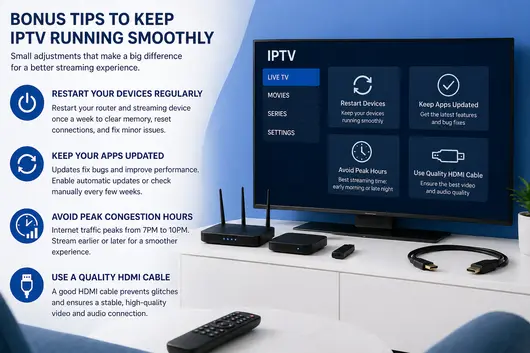
These smaller adjustments may not individually solve buffering, but together they add up to a noticeably more reliable experience.
Restart your devices regularly. Both your router and streaming device benefit from a fresh restart once a week. It clears memory, resets network connections, and often resolves minor issues before they become visible problems.
Keep your apps updated. IPTV app developers regularly push updates that fix bugs and improve performance. An outdated app version can cause unexpected crashes or playback issues. Enable automatic updates or check manually every few weeks.
Avoid streaming during peak congestion hours. In most US households and neighborhoods, internet traffic peaks between 7 PM and 10 PM. If you notice buffering mainly in the evenings, that is likely the cause. Streaming earlier in the day or later at night can make a noticeable difference.
Use a quality HDMI cable. This sounds unrelated, but a faulty or low-quality HDMI cable can cause intermittent visual glitches that look like buffering. If you are using a cable that came free in a box years ago, it may be worth swapping it out.
People Also Ask
Why does my IPTV keep buffering even with fast internet?
Fast internet at the router does not always translate to fast internet at your device. Check whether you are on Wi-Fi or wired, how many devices are sharing the connection, and whether your IPTV provider’s servers are the bottleneck. Running a speed test directly on your streaming device (not your phone) gives a more accurate picture.
Is IPTV buffering my provider’s fault?
It can be. If you have already ruled out your home network as the issue, the problem often lies with the IPTV service itself. Signs of a provider-side problem include buffering that happens across multiple channels at the same time, issues that appear mostly during evenings or weekends, or streams that work fine at first and then degrade. Switching to a higher-quality provider or trying a free trial is the cleanest way to test this.
Does IPTV work well on Amazon Fire TV Stick?
Yes, the Fire TV Stick is one of the most popular devices for IPTV in the US, and it works well with a good connection and a compatible app. For best results, use a wired Ethernet adapter as described in Fix 3, clear the app cache regularly, and make sure the Fire TV Stick is not running too many background applications.
What is the best secure IPTV service with no buffering?
The best secure IPTV service combines reliable server infrastructure, encrypted streams, and consistent performance across peak hours. Rather than taking anyone’s word for it, the most reliable way to evaluate a service is through a free trial. Our service offers exactly that — full access to test quality, channel lineup, and stability before you subscribe.
Conclusion
Buffering does not have to be the price you pay for IPTV. In most cases, the cause is one of the issues covered in this article, and the fix is simpler than you might expect. Start with your internet speed and connection type, work through the device and app optimizations, and if the issue persists, take a honest look at whether your current provider is delivering what you are paying for.
We are confident in the quality of our service, which is exactly why we offer a free trial. Test it on your own terms, on your own devices, and see the difference for yourself. No buffering, no guesswork.