
Table of Contents
If you have an IPTV subscription and your stream keeps cutting out, the problem is rarely the service itself. Most of the time, your internet provider is quietly slowing down your streaming traffic, especially in the evening. This is called throttling, and it is extremely common across the US.
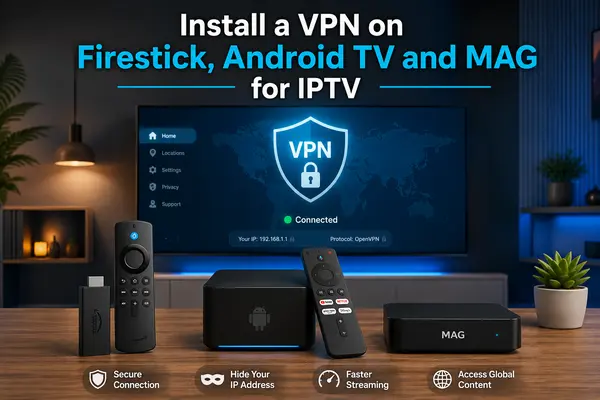
A VPN fixes this. It masks your traffic so your provider cannot target it, which means a more stable picture, less buffering, and a better overall experience. This guide shows you exactly how to install one on the three most popular devices used for IPTV in the US: Firestick, Android TV, and MAG boxes.
Why Your IPTV Subscription Needs a VPN
Your internet provider can detect that you are streaming and deliberately reduce your bandwidth during peak hours. You pay for a solid IPTV subscription, but the weak link is between your router and your provider’s network.
A VPN creates an encrypted tunnel around your traffic. Your provider sees data moving, but cannot identify it as streaming. The result is consistent speeds regardless of the time of day, along with added privacy for everything you watch.
This is one of the most consistent findings in any honest IPTV USA review: users who add a VPN report significantly fewer interruptions than those who stream without one.
IPTV USA Review: What Users Say About Buffering and Speed
Across forums, review platforms, and community groups, the pattern is the same. Users with a strong IPTV subscription still report buffering at night or during weekends. When they add a VPN with a nearby US server, the problem largely disappears.
The takeaway from nearly every IPTV USA review is straightforward: the service is not always the issue. ISP throttling is. A VPN is the single most effective fix, and it costs less per month than most people expect.
Install a VPN on Firestick for IPTV
IPTV on Amazon Fire TV Stick is by far the most popular setup among US cord-cutters. The Firestick is affordable, easy to use, and works with virtually every IPTV app on the market. Installing a VPN on it takes about five minutes.
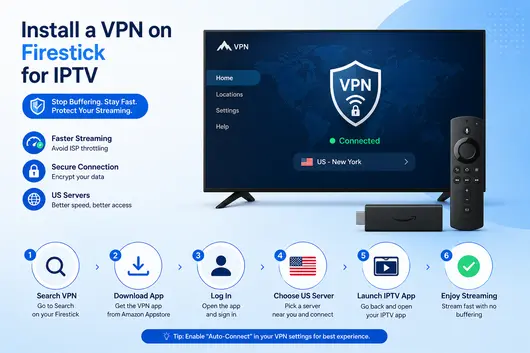
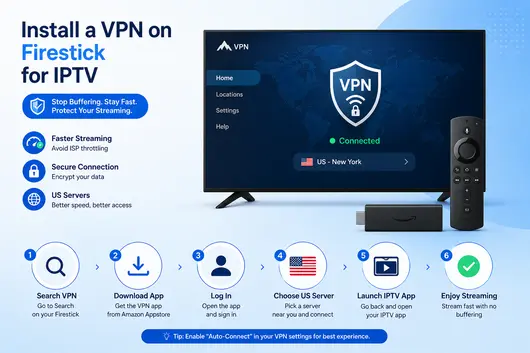
Step 1. Turn on your Firestick and go to the search bar at the top of the home screen.
Step 2. Type the name of your chosen VPN and download the official app from the Amazon Appstore.
Step 3. Open the app and log in with your VPN account credentials.
Step 4. Select a server in the US, preferably in a city close to you, then tap Connect.
Step 5. Return to the home screen and launch your IPTV app as normal.
Step 6. Enjoy stable, uninterrupted streaming.
One useful setting to enable right away: automatic startup. Most VPN apps let you configure this so the VPN connects as soon as you turn on your Firestick. You never have to think about it again.
Install a VPN on Android TV for Your IPTV Subscription
Android TV gives you more flexibility than the Firestick. Most major VPN providers have a dedicated app available directly through the Google Play Store, which makes setup clean and straightforward.
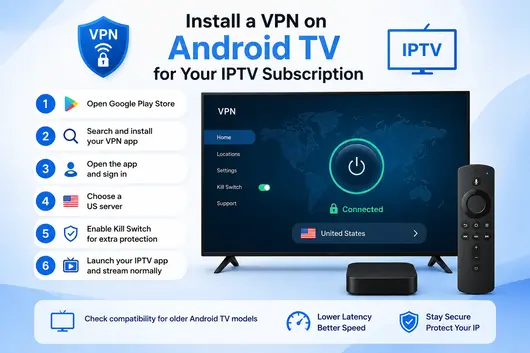
Step 1. Turn on your Android TV and open the Google Play Store.
Step 2. Search for your VPN by name and install the official app.
Step 3. Open the app and sign in with your account.
Step 4. Choose a US server to keep latency low.
Step 5. Enable the kill switch option if your VPN offers it. This cuts your connection automatically if the VPN drops, which prevents your real IP from being exposed.
Step 6. Open your IPTV app and stream normally.
One thing worth noting: some older Android TV models do not support all VPN applications. Check compatibility before subscribing to a new VPN service, especially if your television is more than four or five years old.
Install a VPN on MAG Box for IPTV
MAG boxes are popular among users who want a dedicated IPTV experience, but they have one limitation: you cannot install a VPN app directly on the device. The solution is to set up the VPN at the router level instead.
This approach actually has an advantage. Every device connected to your home network gets protected at once, not just the MAG box.
Step 1. Make sure your router supports VPN client mode. Most modern mid-to-high-end routers do. Routers running DD-WRT or OpenWrt firmware also work well.
Step 2. Open a browser on your computer and log into your router’s admin panel. The address is usually 192.168.1.1 or 192.168.0.1.
Step 3. Find the VPN or Advanced Settings section.
Step 4. Enter the details provided by your VPN provider: server address, username, password, and recommended protocol.
Step 5. Save the settings and restart your router.
Step 6. Connect your MAG box to the network and launch your IPTV subscription as usual.
If router configuration feels too technical, several VPN providers sell pre-configured routers. You plug it in and it works immediately, no setup required.
Device Comparison Table
| Device | Difficulty | Method | Estimated Time |
|---|---|---|---|
| Firestick | Easy | Direct app install | 5 minutes |
| Android TV | Easy | Google Play Store | 5 minutes |
| MAG Box | Intermediate | Router configuration | 15 to 30 minutes |
Recommended VPN Settings by Device
| Setting | Firestick | Android TV | MAG (via router) |
|---|---|---|---|
| Recommended protocol | WireGuard | WireGuard | OpenVPN |
| Suggested server | US, nearest city | US, nearest city | US, nearest city |
| Kill switch | Enable | Enable | Depends on router |
| Auto-start | Recommended | Recommended | On by default |
Common Mistakes to Avoid
Connecting to a distant server. A server in Europe or Asia adds latency that shows up as buffering. Always choose a US-based server when streaming IPTV in the US.
Using a free VPN. Free VPNs typically cap bandwidth and cannot handle HD or 4K streams reliably. For daily use with an IPTV subscription, a paid VPN is worth the few extra dollars per month.
Skipping the speed test. After installation, run a quick speed test with the VPN active. If your speed drops by more than 30 percent, switch to a different server or protocol before you start watching.
Practical Example: Installing a Free VPN on Firestick
For users who want to test before committing to a paid plan, Urban VPN is a free option available directly in the Amazon Appstore and works with IPTV on Amazon Fire TV Stick without any sideloading.
Step 1. Go to the search bar on your Firestick home screen.
Step 2. Type « Urban VPN » and select the official app from the results.
Step 3. Tap Get to download and install. It is free with no account required.
Step 4. Open the app, accept the terms, and let it configure the connection.
Step 5. Choose United States from the server list and tap Connect.
Step 6. Once connected, return to your home screen and open your IPTV app.
Urban VPN works well as a starting point. For regular 4K streaming with a full IPTV subscription, a paid VPN offers more consistent speeds, a strict no-log policy, and better server availability during peak hours.
FAQ
Will a VPN slow down my IPTV subscription?
Not with a good one. A quality VPN using WireGuard on a nearby US server adds minimal latency. In most cases, it actually improves stability by bypassing ISP throttling.
Can I use one VPN on multiple devices?
Yes. Most VPN plans allow between five and ten simultaneous connections. One subscription covers your Firestick, phone, tablet, and more.
Should I keep the VPN on at all times?
It is recommended for continuous protection. That said, you can also activate it only when using your IPTV subscription if you prefer to keep it simple.
What do IPTV USA reviews say about VPNs?
Consistently positive. Users who add a VPN to their setup report fewer buffering issues and a more reliable stream, particularly during evenings and weekends when ISP throttling is most aggressive.
Try It Yourself
The best way to see the difference is to test it. Most quality IPTV subscriptions offer a free 24-hour trial so you can check stream stability, channel quality, and 4K performance before committing. Pair it with a VPN from day one and you will have the most stable setup possible from the start.